
Import a cTrader Statement CSV
TDLab reads closed deals from the cTrader Statement CSV. This is separate from cTrader Order history and from the optional Open API connection.
Required file: cTrader History → Statement CSV
Choose the matching source in Add trades → File / Report. Upload the original export without renaming columns or changing values.Export the correct file
- Open History
Open Trade Watch → History for the correct account. Select the period and check any active filters.
- Check the report columns
The CSV must include Symbol, Opening direction, Opening time, Closing time, Closing quantity and Net in the account currency, for example Net USD. Include Entry price, Closing price, Commissions and Swap when available.
- Download Statement as CSV
From History, click Statement. On the statement page, click Save and save the CSV. Keep the original English headers and values. Do not upload Order history or XLSX.
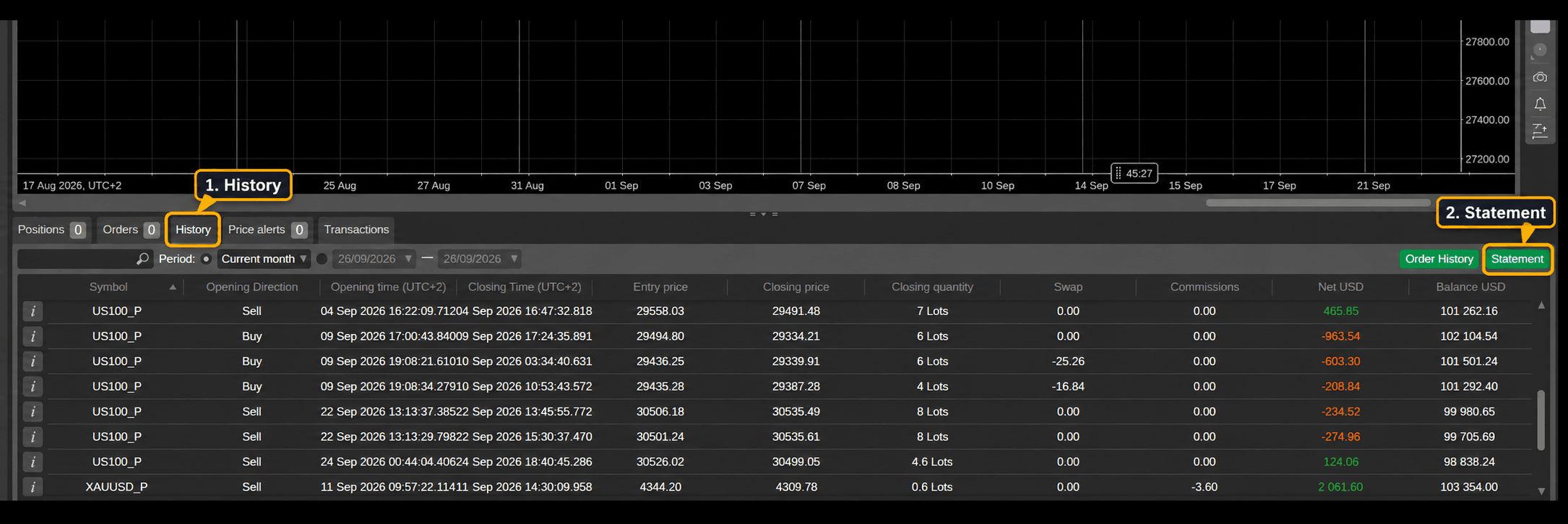
1 · History / 2 · Statement. Open the image to enlarge it. - Match the file timezone
Read the UTC offset in the CSV time headers, such as Opening Time (UTC+2), and select the same fixed offset. If it is absent, check cTrader’s User time offset and compare the preview with a known trade. Do not assume UTC+0.

Before you import
Check the account, period and report currency. Use Net in the TDLab account currency. Include complete opening and closing timestamps and a positive closing quantity.Format and data limitations
Only closed CSV deals are imported. Invalid rows are reported in Import History; a missing or ambiguous Net currency column blocks the file. Without complete costs, net is preserved but gross and costs cannot be fully separated. Positive swap remains a credit. Stop loss and take profit are not reconstructed, and Balance is not imported as a trade.
Import it into TDLab
- Open the trading account that should receive the trades.
- Open Add trades and select File / Report.
- Select this exact platform/source and the timezone used by the file timestamps.
- Upload the file and compare the time preview with a known execution.
- Confirm the import, then check imported and skipped rows in Import History.
Return to the file import overview to compare all supported sources.
Understand the method
Put the evidence to work.
Connect your real trades with behavior, rules and historical market context. Start free for 7 days.