
cTrader Trading Journal: OAuth Sync, Fields and Review
Product research based on TDLab workflows, hands-on testing and cited source material.
A cTrader trading journal can connect without CSV exports or sharing a broker password. TDLab sends the user to cTrader's official OAuth authorization screen, requests the view-only accounts scope and links the selected live or demo account. Closed trades are imported when the trader clicks Sync now.
That last detail matters: TDLab remembers the authorized connection, but the current cTrader sync is user-triggered, not a background schedule. Calling it automatic without that qualification would set the wrong expectation.
Short answer
Create a cTrader account in TDLab, choose Connect cTrader, approve view-only access on the cTrader page, select the correct account if more than one is authorized and click Sync now. Reconcile the imported closed deals before adding behavioral review fields.Factual review
Product and platform details on this page were checked on August 4, 2026 against the current TDLab implementation and cTrader's official Open API documentation.How the cTrader journal connection works
- OAuth authorization: TDLab redirects to cTrader so the trader can approve access under the cTID.
- Account selection: when several authorized accounts exist, TDLab shows account ID, trader login, broker and Live/Demo so the correct one can be linked.
- View-only scope: the connection requests the accounts scope, which cTrader documents as access to account information and statistics without trading operations.
- Closed-deal sync: Sync now requests historical closing deals and the related position information.
- Deduplication and correction:known trades are skipped, while matching records can be updated when cTrader returns corrected P&L, fees or risk levels.
cTrader documents OAuth 2.0, account authorization and the distinction between view-only accounts scope and full trading scope in its official account-authentication guide. TDLab uses the view-only option.
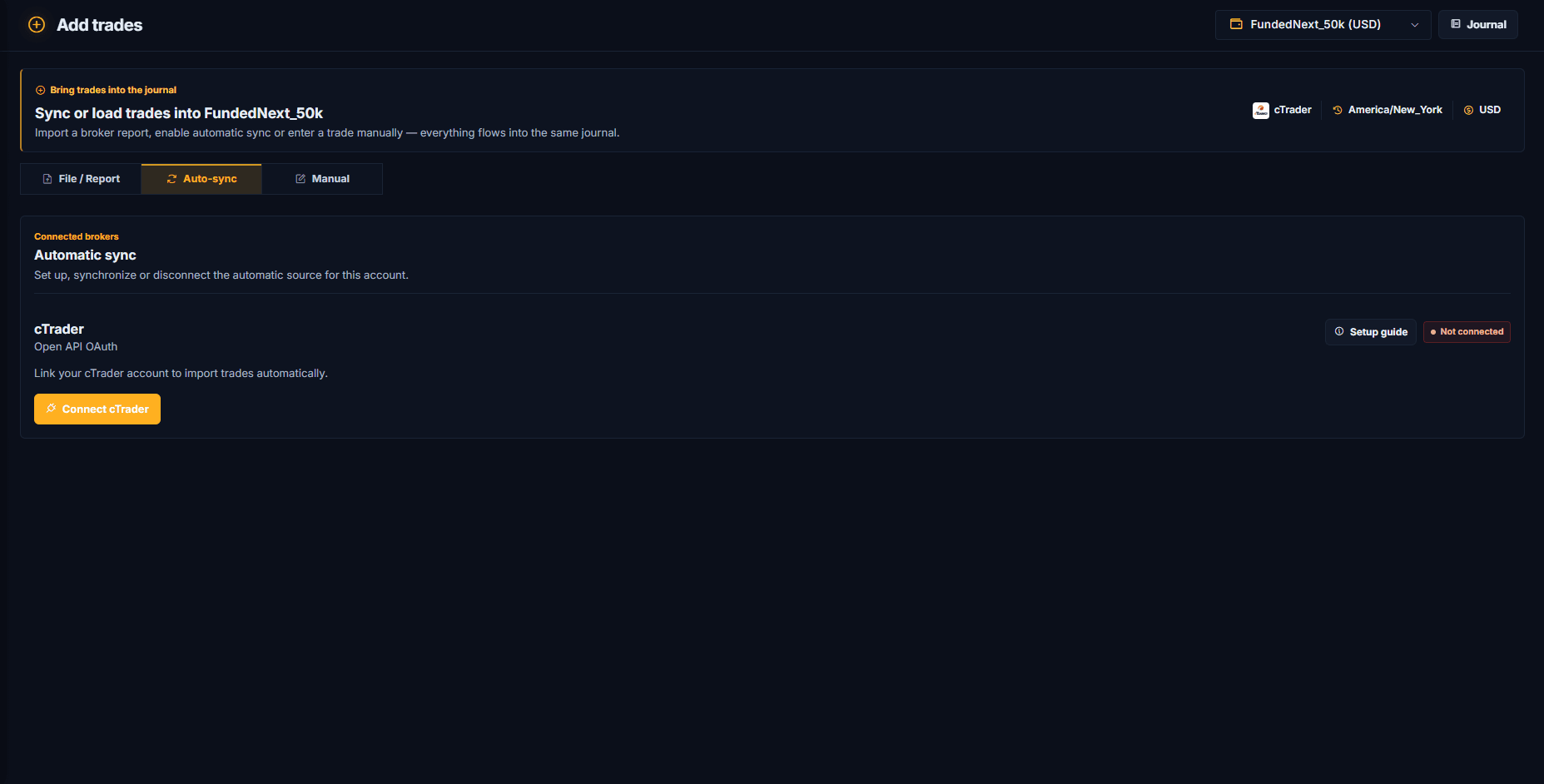
Connect cTrader to TDLab
- Create or select a TDLab account whose platform is cTrader.
- Open Add trades and choose the Auto-sync tab.
- Select Connect cTrader.
- Sign in on cTrader and approve access to the intended accounts.
- If an account picker appears, compare Live/Demo, broker, login and cTrader account ID before choosing.
- Return to TDLab and run Sync now.
The current product steps and connection states are documented in Connecting cTrader for auto-sync.
What TDLab imports from cTrader
TDLab builds a journal trade from a closing deal and its related position data. The current persisted review record includes:
- position ID used as the journal ticket;
- symbol and buy/sell side;
- normalized size;
- position open time and deal close time;
- gross realized P&L;
- commission and swap recorded as fees;
- stop-loss and take-profit levels when the API supplies them.
cTrader's own History documentation distinguishes gross realized result, net result, commissions, swap and closing volume. See the official cTrader History field reference. Keeping P&L and fees separate makes reconciliation easier.
What does not arrive automatically
An execution API cannot know the reasoning that existed before a decision. After sync, the trader still needs to review:
- setup or playbook entry;
- whether the trade followed the plan;
- execution quality;
- discipline mistakes and emotional context;
- screenshots, observations and the next action.
Complete those fields through the TDLab Trade Review queue. Then measure the difference between known broker facts and reviewed behavior using the trading plan adherence method.
Closed trades, not live position monitoring
The cTrader Open API can expose past, current and pending operations, as described in its official Open API overview. TDLab intentionally uses closing deals for this journal sync. An open position that has not produced a closing deal is not yet a completed review record.
The journal should therefore not be treated as a live broker terminal, risk firewall or substitute for cTrader's current account state.
How incremental cTrader sync avoids duplicates
On the first connection, TDLab uses the available account-registration timestamp as the historical starting point. If that timestamp is not available, the current fallback requests the previous six months. On later syncs, the query overlaps the latest known close time by two days.
That overlap is deliberate. It gives corrected or recently settled data another chance to arrive. TDLab uses fingerprints plus a position, close-time and symbol key to decide whether to insert, update or skip the record.
Common cTrader sync results and errors
No cTrader accounts are shown
Confirm that the intended account belongs to the cTID used during authorization and was included in the approval screen. cTrader notes that accounts created after an earlier authorization need to be authorized separately.
The wrong account was linked
Disconnect it and reconnect, then compare account ID, trader login, broker and Live/Demo before completing the picker. Do not combine live, demo and evaluation data merely because they share one cTID.
Sync completes without new trades
TDLab imports closing deals. Check whether positions are still open and whether the latest closed trades already exist. A zero-import result with skipped records can be a normal incremental sync.
Some trades are skipped
Missing position ID, symbol, side or close timestamp cannot form a valid journal record. Known fingerprints are also skipped as duplicates. Reconcile counts and inspect the source before deleting or recreating the connection.
The connection needs authorization again
TDLab attempts to refresh expired access tokens. If access was revoked or the protected credentials can no longer be used, disconnect and complete the cTrader OAuth flow again.
New trades do not appear until the page is opened
That matches the current workflow: cTrader sync runs when Sync now is selected. It is not presently scheduled in the background. MetaTrader uses a different transport; compare it in the MT5 journal and FTP sync guide.
Review the first cTrader sync
- Fix one account and date range.
- Compare the number of closed deals with cTrader History.
- Check symbol, side, size, timestamps, gross P&L and fees.
- Open partial closes and confirm how each closing deal is represented.
- Complete setup, plan, execution and mistake fields.
- Confirm review coverage before reading behavioral analytics.
Use the post-session journal routine to keep the review current, then compare the right metrics with the performance scorecard beyond win rate.
Common questions
Does TDLab receive my cTrader password?
No. Authentication happens on cTrader's OAuth page. TDLab receives authorization tokens for the approved scope, not the password entered on the cTrader sign-in screen.
Can TDLab place cTrader orders?
The TDLab connection requests cTrader's accounts scope, which the official documentation defines as view-only. It does not request the trading scope.
Does cTrader sync run automatically in the background?
Not currently. The account remains connected, but importing runs when the trader selects Sync now.
Does the cTrader sync import open positions?
No. The current TDLab journal sync creates records from closing deals. Use cTrader itself for live open-position state.
cTrader and related marks belong to Spotware. TDLab is an independent journal and is not presented as an official Spotware product.
Connect behavior, context and performance.
TDLab connects your real trades with behavior, rules and historical market context, then helps you test what to change. Start free for 14 days.