
Import Tradovate Web Orders
Tradovate Web Orders contains fills, not completed trade rows. TDLab pairs Filled orders into closed round trips, so the selected range and account filter are essential.
Required file: Tradovate Web Orders CSV
Choose the matching source in Add trades → File / Report. Upload the original export without renaming columns or changing values.Export the correct file
- Open Reports from the side menu
In the right sidebar, open the hamburger menu and select Reports. The path is identical in Tradovate Web and NinjaTrader Web.
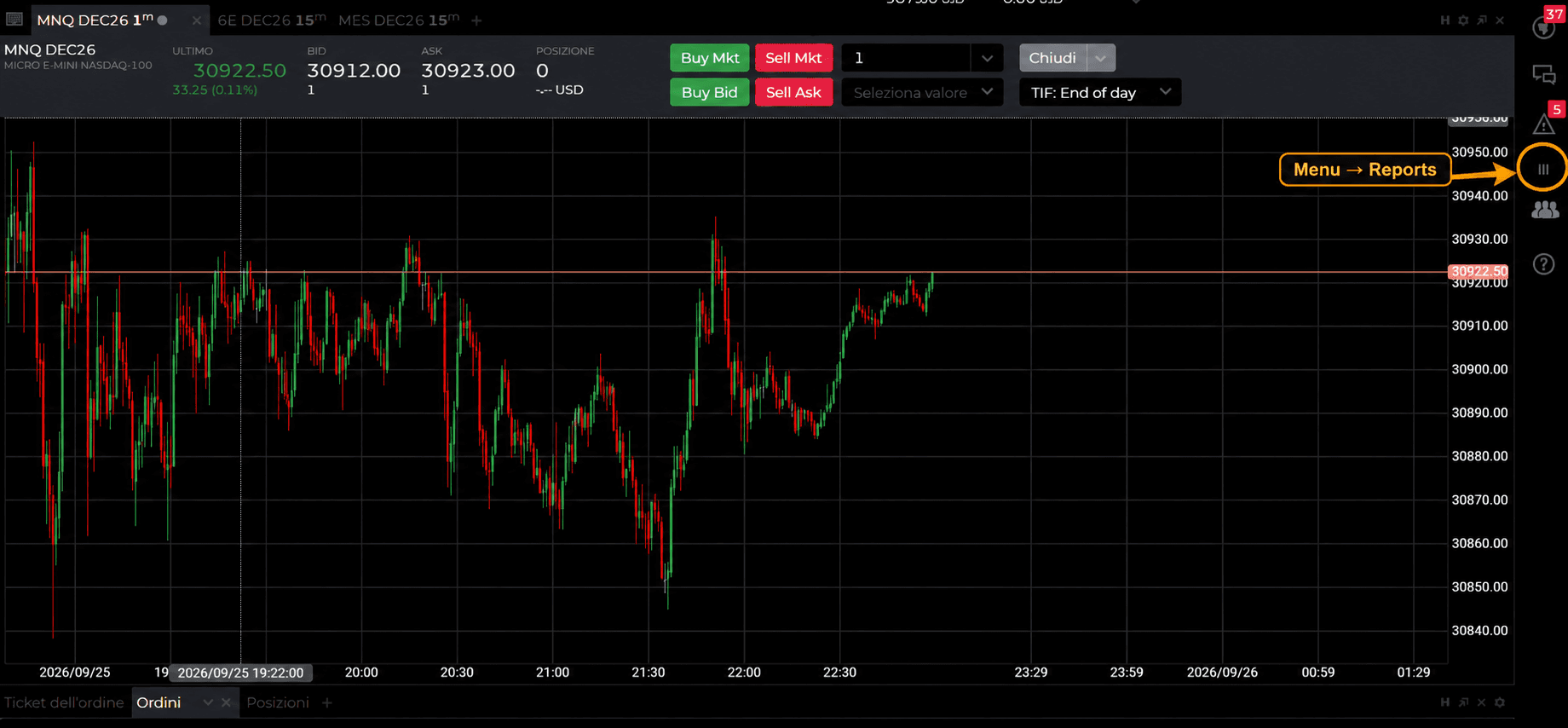
Open the highlighted menu in the right sidebar and select Reports. - Choose Orders
Open the Orders report. Position History, Cash History and Performance are different reports and are not accepted here.
- Filter one account and a flat range
Filter one source account. Choose a range that starts while the account is flat and ends after every included position is flat again. Keep Account, Order ID, B/S, Contract, avgPrice or Avg Fill Price, filledQty or Filled Qty, Fill Time, Status and Notional Value.
- Download the CSV
Download the Orders report as CSV. Do not use PDF, Excel or a Tradovate Desktop file under this source.
- Match the report clock
The CSV has no reliable UTC offset. Compare Fill Time with a known execution. Choose America - Chicago only if it matches Central Time; otherwise choose the platform or computer timezone used to generate the report.

Before you import
Filled orders are rebuilt into closed round trips with contract, direction, size, fill times and gross P&L. Working, cancelled and rejected rows are not trades.Format and data limitations
Orders does not provide commissions, so fees are stored as zero and P&L is gross. A position still open at the end of the file is not imported. Starting in the middle of a position can reconstruct the wrong direction. Files with no source account or more than one account are rejected.
Import it into TDLab
- Open the trading account that should receive the trades.
- Open Add trades and select File / Report.
- Select this exact platform/source and the timezone used by the file timestamps.
- Upload the file and compare the time preview with a known execution.
- Confirm the import, then check imported and skipped rows in Import History.
Return to the file import overview to compare all supported sources.
Understand the method
Put the evidence to work.
Connect your real trades with behavior, rules and historical market context. Start free for 7 days.