
Import TradingView Order History
TradingView exports broker orders rather than ready-made journal trades. TDLab uses Filled orders to reconstruct closed round trips; positions still open at the end of the file are not imported.
Required file: TradingView broker panel Order history CSV
Choose the matching source in Add trades → File / Report. Upload the original export without renaming columns or changing values.Export the correct file
- Open the connected broker
In the chart’s trading panel, confirm that you are viewing the broker and account you want to import.
- Click the download arrow
Click the download icon at the top right of the broker panel. This opens Download data.
- Select Order history
In Download data, select Order history and download the CSV. Keep the original columns and values.
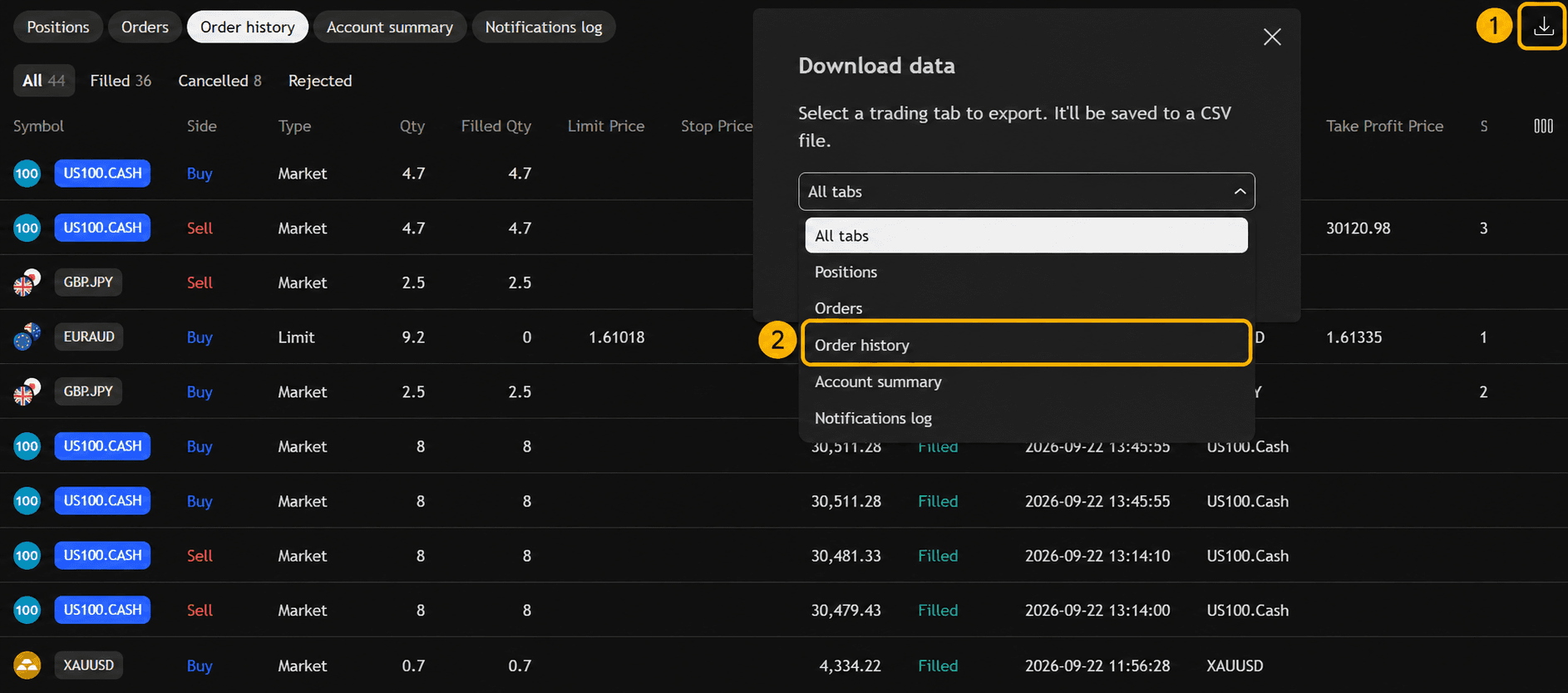
1 · Download arrow / 2 · Order history. Open the image to enlarge it. - Check the timezone and upload
The broker panel does not show the export timezone. Compare Update Time in the CSV with the known time of one execution, select the matching timezone and verify the TDLab preview.

Before you import
Only completed round trips are imported. Trades that are still open will not be imported.Format and data limitations
Forex P&L in another currency is converted using daily ECB reference rates through Frankfurter. The result is an estimate and can differ materially from the broker. TDLab uses the latest rate available on or before the UTC closing date, up to seven days earlier; without a valid rate, the trade is skipped and reported. Columns and quantity conventions vary by broker, so this does not imply support for every broker, Paper Trading export or Strategy Tester export.
Import it into TDLab
- Open the trading account that should receive the trades.
- Open Add trades and select File / Report.
- Select this exact platform/source and the timezone used by the file timestamps.
- Upload the file and compare the time preview with a known execution.
- Confirm the import, then check imported and skipped rows in Import History.
Return to the file import overview to compare all supported sources.
Put the evidence to work.
Connect your real trades with behavior, rules and historical market context. Start free for 7 days.