
Import NinjaTrader Desktop Trades
NinjaTrader Desktop already exposes completed trades in Trade Performance. TDLab therefore imports the Trades grid directly instead of reconstructing fills from the Web Orders format.
Required file: NinjaTrader Desktop Trade Performance → Trades CSV
Choose the matching source in Add trades → File / Report. Upload the original export without renaming columns or changing values.Export the correct file
- Open Trade Performance
Open Control Center → New → Trade Performance. Filter one account, set the date range and generate the report.
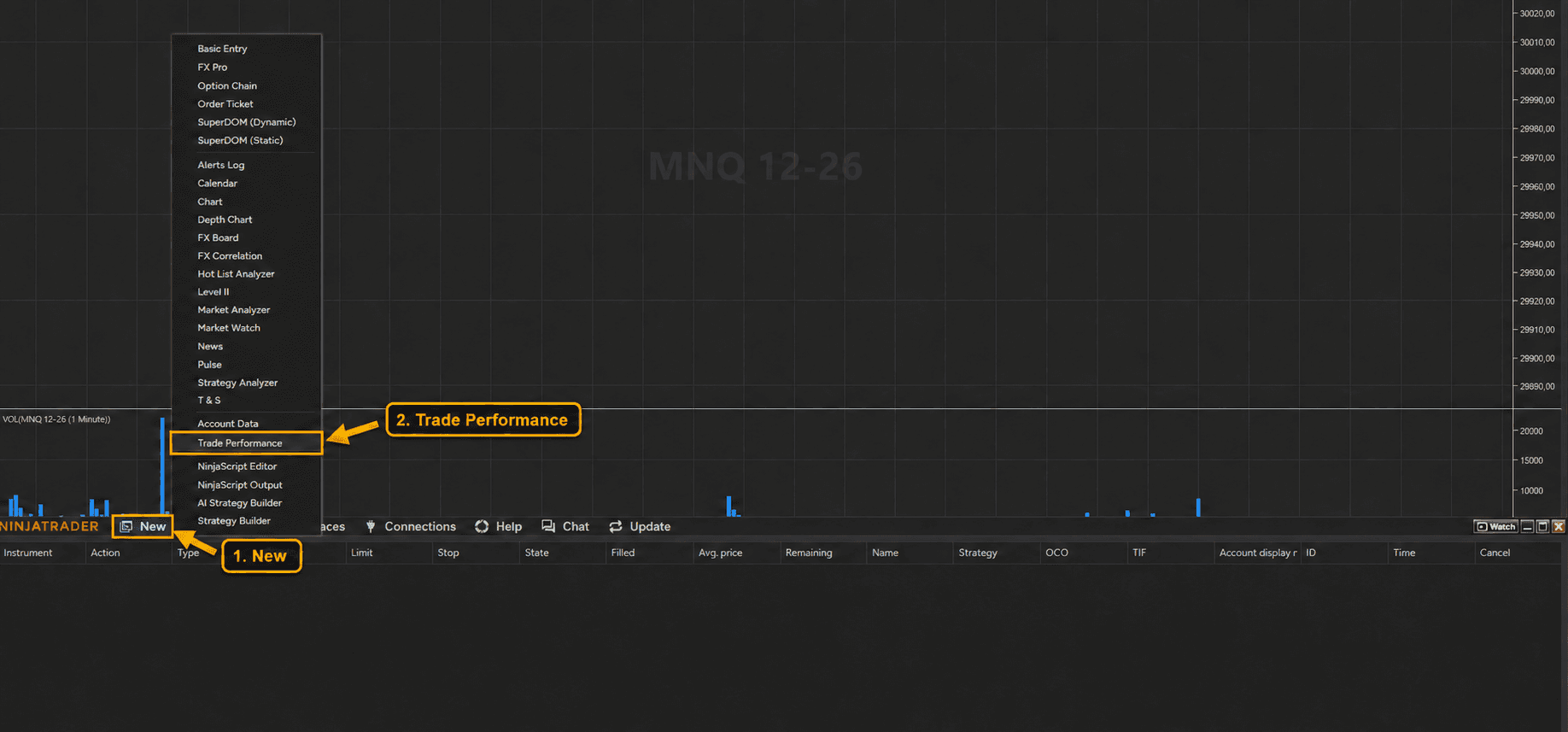
1 · New / 2 · Trade Performance. Open the image to enlarge it. - Select Trades in currency
Select Trades (Mestieri in some Italian interfaces) and Currency, for example Trades ($). Points, ticks, pips and percent views are rejected. Do not export Orders or Executions.
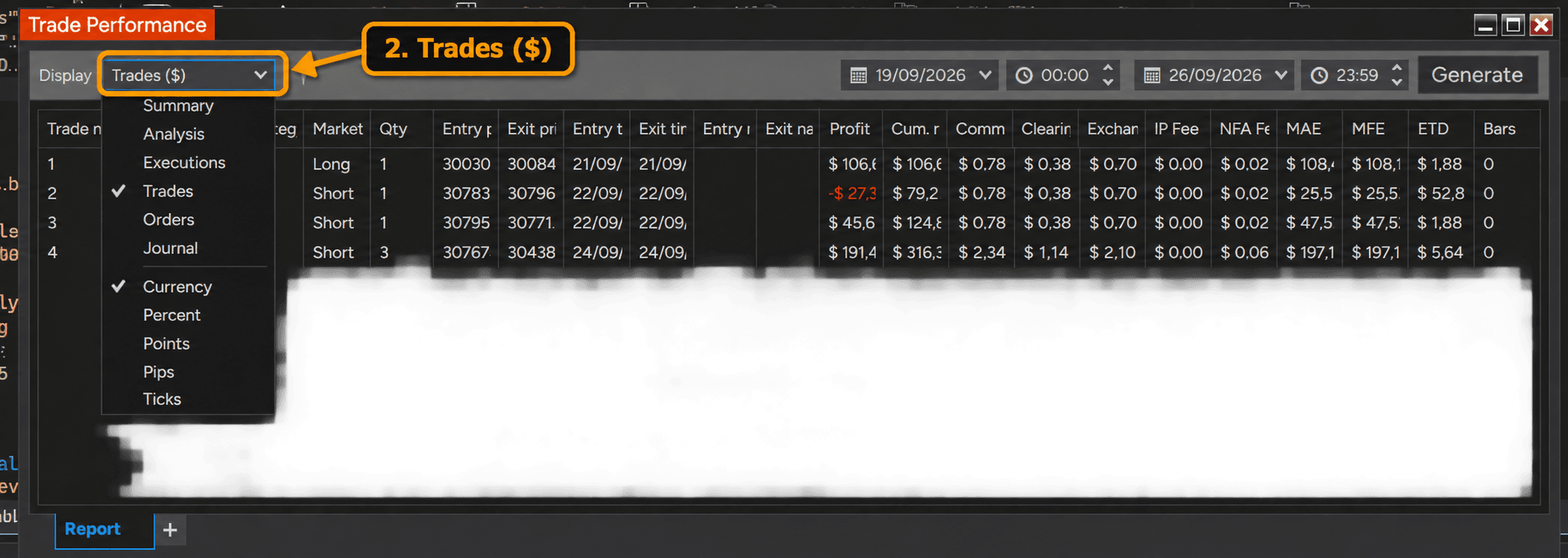
In Display, select Trades and Currency, shown as Trades ($). - Keep the complete grid
Keep Trade number, Instrument, Account, Market pos., Qty, Entry price, Exit price, Entry time, Exit time, Profit and Commission. Leave Clearing fee, Exchange fee, IP fee and NFA fee visible when available. English and Italian headers are accepted.
- Export the grid as CSV
Right-click the Trades grid and export it as CSV. Do not upload Excel or the NinjaTrader Web Orders report under this source.
- Match the platform timezone
Choose the same city configured in Tools → Options → General → Time zone. Use America - Chicago for Central Time. Trade Performance does not include a reliable UTC offset, and the historical-data export timezone is a separate setting.


Before you import
Each completed Trades row is imported with instrument, direction, quantity, prices and times. Profit must be displayed in currency. TDLab reconstructs gross P&L by adding Commission and any available fee components to net Profit.Format and data limitations
Files with no account or more than one account are rejected. Rows missing Profit, price, quantity, direction or time are skipped. Commission appears only when configured and present; extra fee columns are optional. MAE, MFE, ETD, Strategy and trade number remain in the source record.
Import it into TDLab
- Open the trading account that should receive the trades.
- Open Add trades and select File / Report.
- Select this exact platform/source and the timezone used by the file timestamps.
- Upload the file and compare the time preview with a known execution.
- Confirm the import, then check imported and skipped rows in Import History.
Return to the file import overview to compare all supported sources.
Understand the method
Put the evidence to work.
Connect your real trades with behavior, rules and historical market context. Start free for 7 days.