
Import an MT4 Account History report
TDLab reads the native MT4 Account History report. Use the original HTML report for closed trades; open positions, pending orders and account movements are not trade rows.
Required file: MetaTrader 4 HTML report
Choose the matching source in Add trades → File / Report. Upload the original export without renaming columns or changing values.Export the correct file
- Open Account History
In MetaTrader 4, open Terminal (View → Terminal, or Ctrl+T) and select Account History for the account you want to import.
- Choose the period, then Save as Report
Right-click inside Account History and choose All History, Last 3 Months, Last Month or Custom Period. Right-click again and choose Save as Report. The report language must be English.
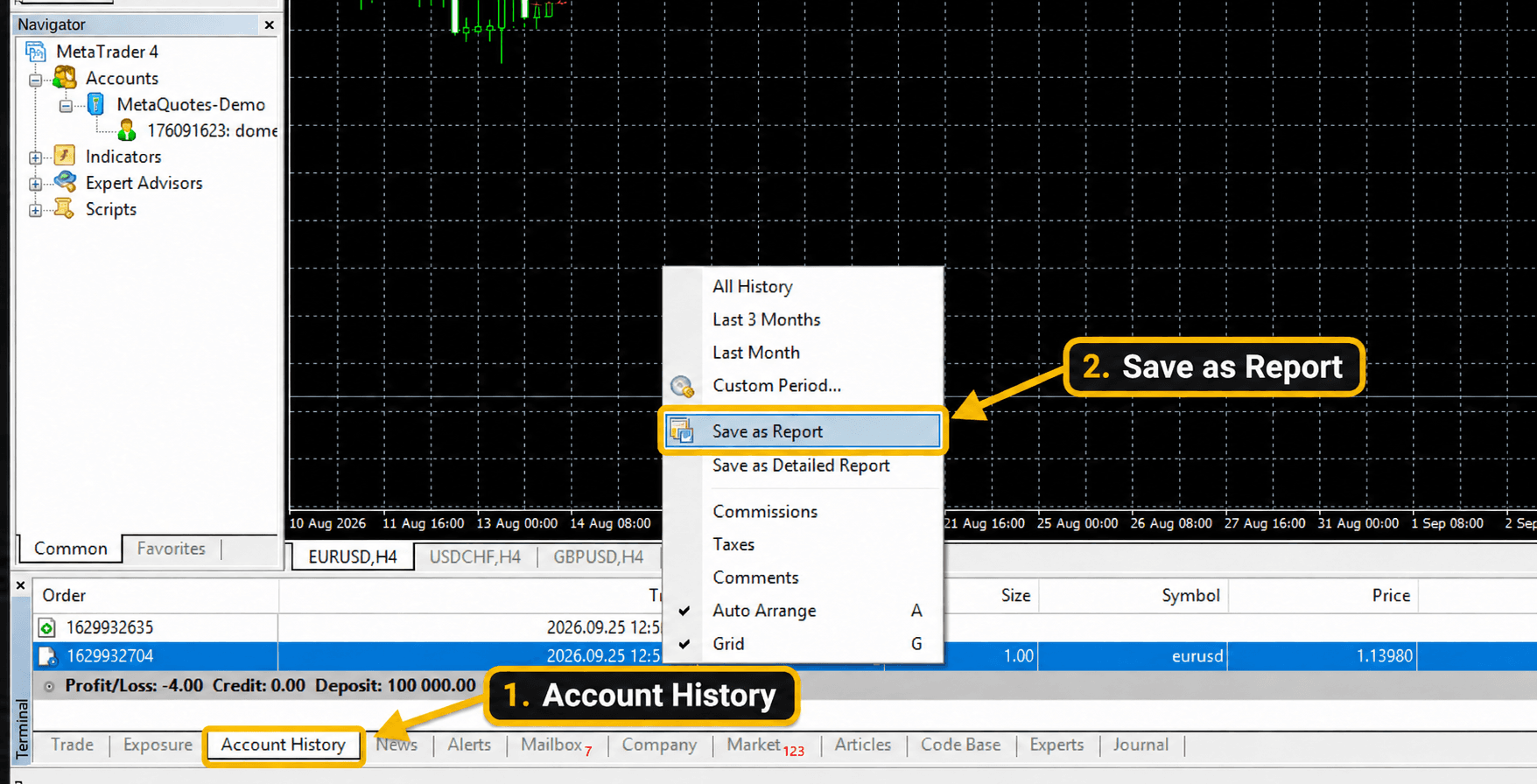
1 · Account History / 2 · Save as Report. Open the image to enlarge it. - Save the original HTML report
Save the report without editing its columns or values, then upload that file in TDLab.
- Match the broker server timezone
MT4 reports use the broker server clock, not your computer timezone. Select that timezone in TDLab and compare the preview with a known execution.

Before you import
Check the account, period and report currency. The TDLab account currency must match the report currency. Select the broker server timezone and compare the preview with a known execution.Format and data limitations
Upload the original HTML report. This import is for closed trades, not open positions, pending orders or account movements. Taxes are not imported and may cause differences in net P&L. Commission and debited swap are stored as fees; credited swap increases P&L. Original amounts remain in the source details.
Import it into TDLab
- Open the trading account that should receive the trades.
- Open Add trades and select File / Report.
- Select this exact platform/source and the timezone used by the file timestamps.
- Upload the file and compare the time preview with a known execution.
- Confirm the import, then check imported and skipped rows in Import History.
Return to the file import overview to compare all supported sources.
Put the evidence to work.
Connect your real trades with behavior, rules and historical market context. Start free for 7 days.